Keep an AI job running after you close the chat
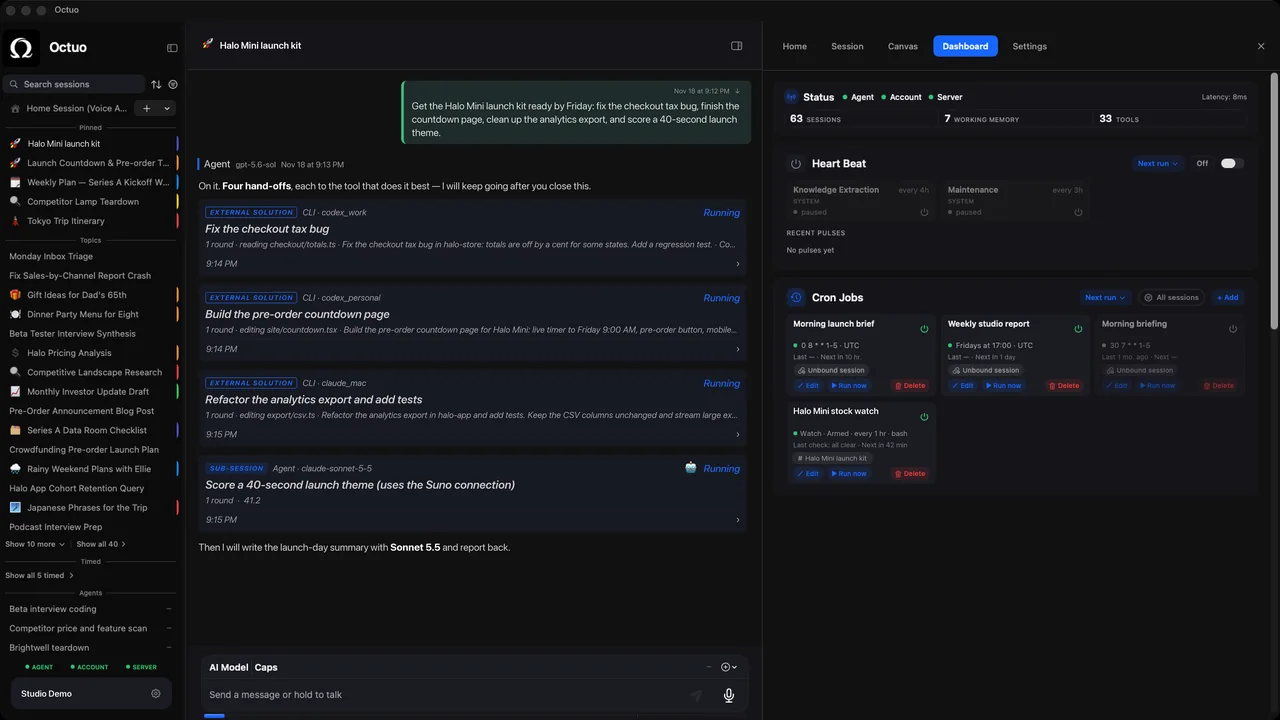
Find out where the job runs. If it lives in a chat window, closing the window can end it; if it runs as a process on your Mac, as a scheduled routine, or inside an assistant built for long jobs, it can continue. Write down what done looks like and where results land, so nobody has to watch.
Where does the job actually run?
There are three common homes:
- In the chat session. The job is tied to the window or tab.
- As a process on your Mac. The job is tied to the app or terminal staying open and to the Mac staying awake.
- As a service or scheduled routine. The job is tied to that service, not to your window.
Do not guess; test. Start a five-minute job, close the window, and look again. Ten minutes of testing is cheaper than finding out later.
How do I brief a job that runs without me?
Five lines are enough:
- The goal and a "done" line. "Done means the report is in the folder and the totals match."
- Boundaries. What the job may touch and what it must leave alone.
- What to do when blocked. Stop and ask, or pick a default and note it. Say which.
- Where results land. One folder or one summary, decided before the work starts.
- When to report. At the end, at a halfway checkpoint, or both.
A halfway checkpoint keeps a change of direction cheap; see ask for a checkpoint halfway.
How do I keep my Mac awake for a local job?
If the work runs on your Mac, sleep can pause it. macOS includes a command for this. caffeinate -i -t 7200, run in a Terminal tab, prevents idle sleep for two hours (the -t value is in seconds). The -s option, which prevents system sleep, only applies on AC power, so plug in for long runs. Keep that tab open: the assertion ends when caffeinate exits.
How will I know it finished, or got stuck?
Decide how you will hear back before you leave. You want three signals: a notification when the job is done, a status you can read at a glance, and a clear sign when something needs you. Then choose when you will look. Fixed review windows work better than constant checking; see check in twice a day, not twelve times.
If you will be away for days, write an away note that says what keeps running, what pauses and what can be decided without you. Our away-note guide has the template.
Where Octuo fits
Octuo is a personal assistant that coordinates your AI tools, agents and outside services for you: you say the goal, and it handles the preparation, delegation and follow-up. Long, multi-step jobs keep going after the chat closes, and Octuo reports back when a job is done.
Octuo follows the work and reports back. Progress is there whenever you want to check; decisions that need you come to Attention. Schedules and condition watches run on their own and notify only when something changes. You step in for your own account sign-ins, payments and sensitive approvals that must be yours; Octuo handles the surrounding work.
Octuo is a native Mac app and needs an internet connection. As with any tool, test it with a short job first. See what Octuo does.
FAQ
Will a job stop if my Mac sleeps?
If the work runs on your Mac, it can pause when the Mac sleeps. Use caffeinate or your Energy settings, and test with a short job first.
How long should I wait before checking? Pick review times in advance instead of watching a clock. Twice a day works for many long jobs, with a halfway checkpoint for anything that matters.
What should I never leave unattended? Anything hard to undo: sending, deleting and paying. Keep those behind your own yes and let the job prepare them instead.
Sources
- Apple,
caffeinate(8)manual page on macOS (options-i,-s,-t): runman caffeinatein Terminal (read 2026-10-17 on macOS 26.3.1)